Key claims checked before you approve.
Editorial checks read each saved revision against its topic and its sources. They tell you exactly what needs attention, and they stop a page being approved while a claim is unsupported or a required check has failed.
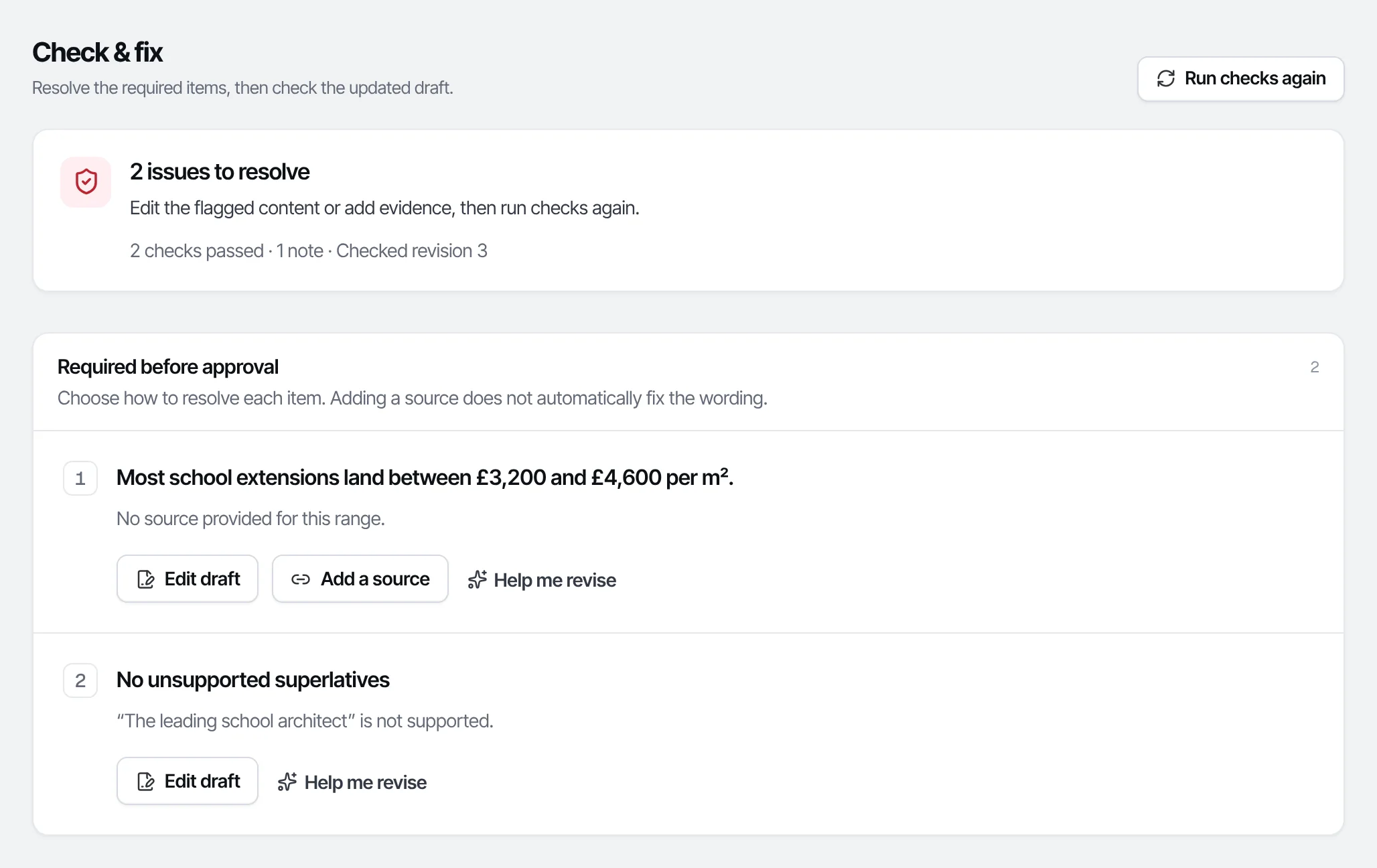
Two kinds of check, one verdict.
Some checks are rules that are either met or not. Others need judgement, so a model reads the page the way a careful editor would. Both feed one verdict for the revision.
- Claim support
- Up to twelve significant claims are assessed against the saved sources. Each is marked supported or needing review. A claim citing a source that wasn’t part of the research is always marked for review.
- Source references
- Every external link in the page must be one of the saved sources. A link to anything else fails the check.
- Publishable copy
- Placeholders such as [ADD:] or [TODO] and dummy text such as lorem ipsum fail the check, so an unfinished page cannot be approved by accident.
- Editorial issues
- The reviewer flags up to ten further issues, such as an unsupported superlative or a section that misses the topic, each graded as a warning or a failure.
- Structure and metadata
- Headings, a search description of a useful length and at least one internal link. These are warnings: worth fixing, never blocking.
- Planned links
- Links to other pages in the plan must point inside the cluster, so the published structure holds together.
A page is ready when its claims are supported, not when it sounds confident. Approval waits until they are.
Each issue comes with a way to resolve it.
Required items are listed in order, each with the choices that make sense for it: edit the draft at the exact passage, add a source that supports the claim, or ask for a revision with the issue as the instruction. Then run the checks again.
- Go straight to the passage
- Editing an issue opens the draft and selects the sentence in question, where it can be found.
- Adding a source is honest
- A new source supports the claim; it doesn’t rewrite it. Run the checks again to confirm.
- Notes that don’t block
- Warnings are listed separately, so you can decide what’s worth changing.
Approval belongs to one revision.
Approval is stored against the exact revision, and the activity log records who approved it. Change a word afterwards and the page needs checking and approving again.
Exact revisions
Approval applies to the saved revision you checked. A newer revision is never covered by an older approval.
A deliberate step
Approving asks you to confirm that you have reviewed the page and its sources. It is never automatic.
Edits clear approval
Saving a change returns the page to draft and clears its approval, review and any schedule.
Get sign-off without sharing your workspace.
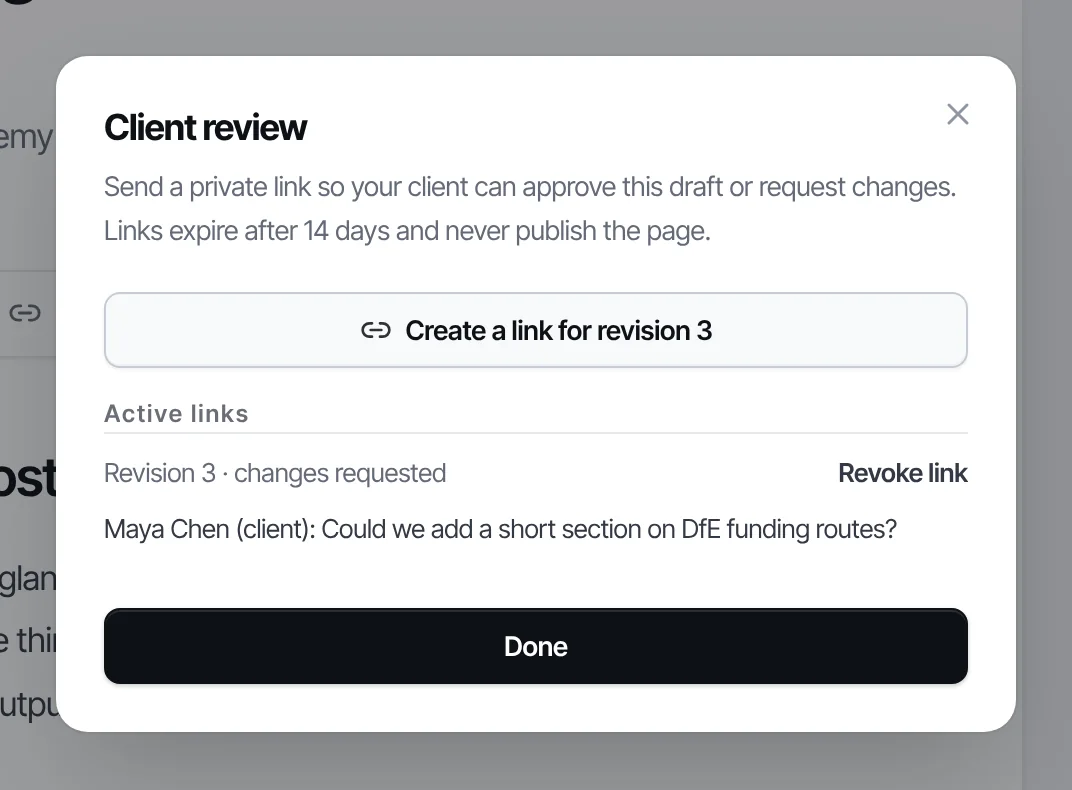
Send a client a private link to one saved revision. They read the page, then approve it or request changes with their feedback. A pending or declined review of the revision you are about to publish holds it back. Editing creates a new revision, so send a new link when you need sign-off on it.
- One revision, read-only
- The link shows the page and its list of sources, nothing else from your workspace.
- Expires in 14 days
- Links can be revoked at any time, and can never publish anything.
- Recorded with the page
- The client’s name, decision and feedback are saved with the review, and the response appears in the activity log.
Help me revise
Turn any issue into a revision request. The writer redrafts with the issue as its instruction.
Add a source
Paste a URL that supports a claim. It is read, saved and used when the checks run again.
Questions for you
Facts the page needs but doesn’t have are listed as questions, ready to answer in your knowledge base.
Questions, answered.
More in the full list of questions, or ask us directly.
Are editorial checks a guarantee of accuracy?
No. They are a careful second reading, not a fact-checking service. They catch unsupported claims and unfinished copy reliably, but the person approving the page remains responsible for it.
Do checks run automatically?
Every new draft is checked as part of writing it. After you edit a page or add a source, run the checks again on the saved revision before approving.
Does running checks again cost a credit?
A standalone check uses one AI credit. Checks that run as part of writing a draft are included in that draft’s credit.
Can a client approve a page for me?
A client can approve or request changes through a review link, and their answer is recorded. Approving the page in Geoffice, and publishing it, stays with your team.
Keep exploring
Become the source.
Add your website and see what seven AI assistants say about you today, then have your first pages written. Seven days free, no card needed.